---
title: "鸿蒙系统安装与使用教程"
description: "包含鸿蒙系统安装、解除应用管控、添加定位应用 3 个步骤
"
canonical_url: "https://www.hui-wa.tech/faq/23"
---
## 一、鸿蒙系统安装流程
1. 前往官网下载并安装 APK 包。
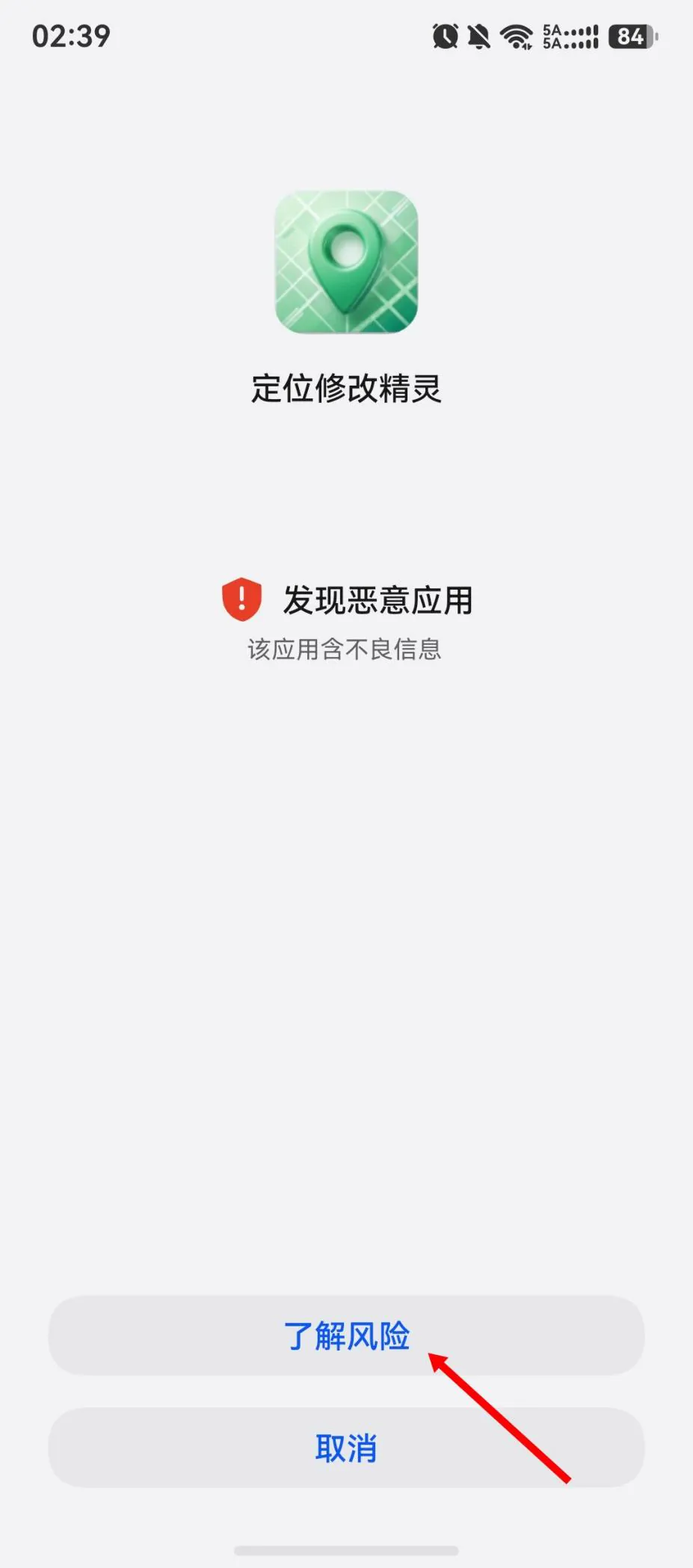
2. 安装完成后鸿蒙系统会提示风险应用,点击“了解风险”。
3. 勾选“已了解此应用存在风险”,点击“仍然安装”。
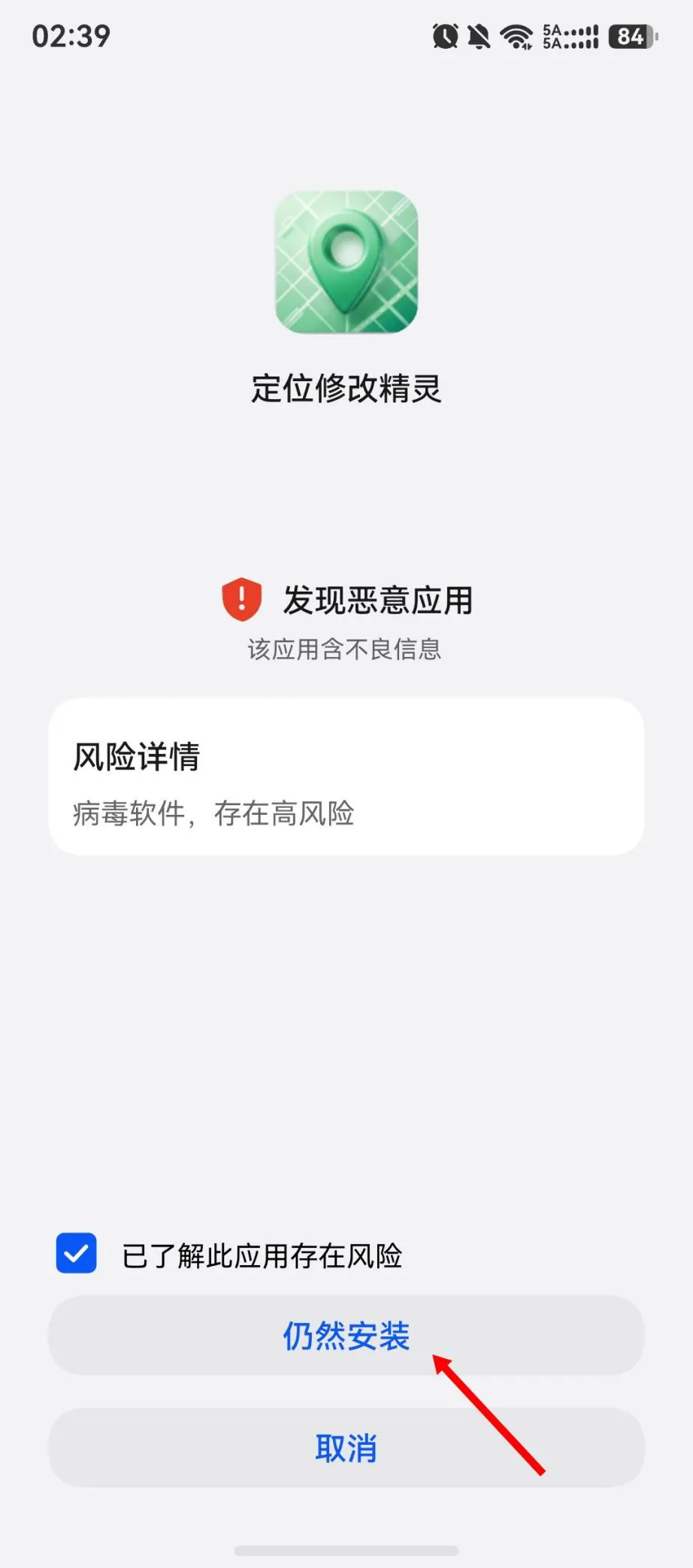
4. 风险解除后点击打开。此时应用处于被管控状态,添加应用时是空白,没有应用可添加。

## 二、应用解除管控
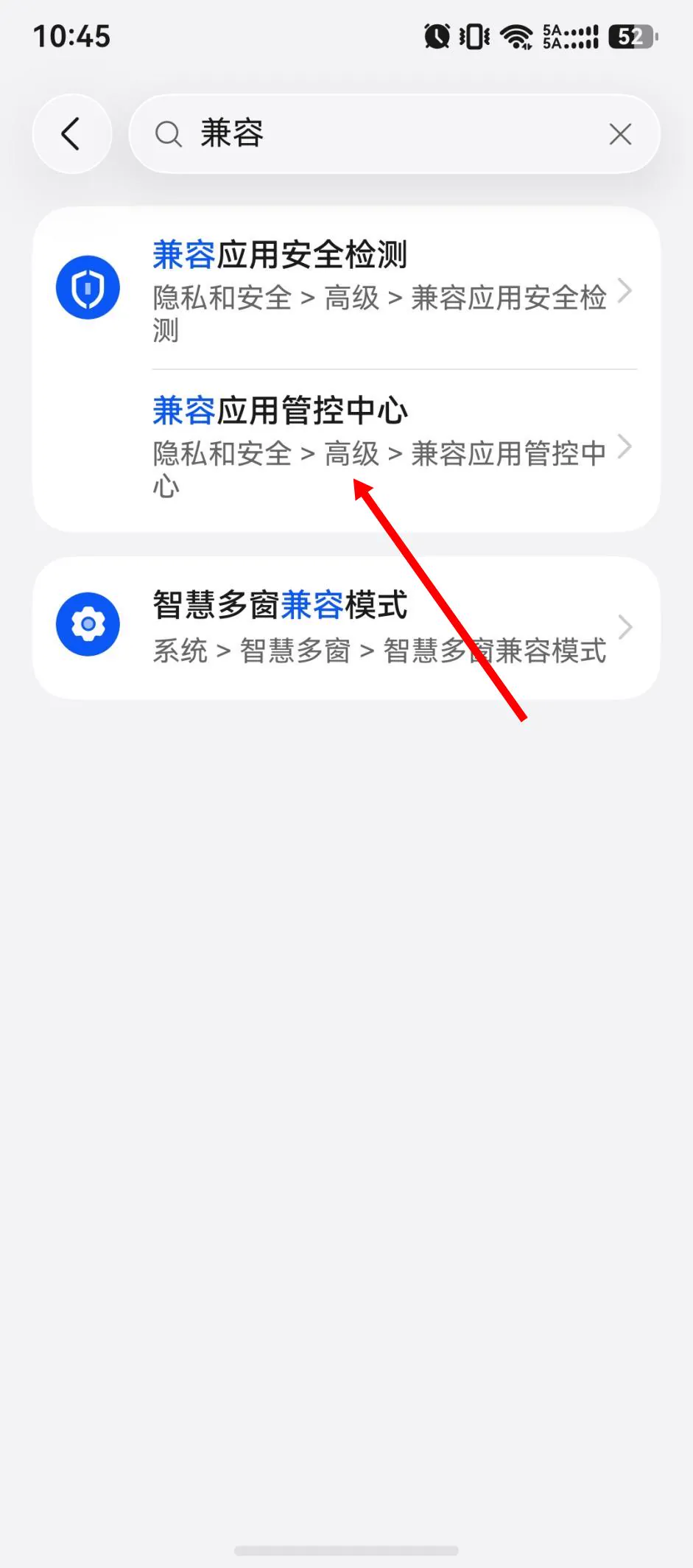
1. 打开手机设置,在顶部搜索框内搜索“兼容”。

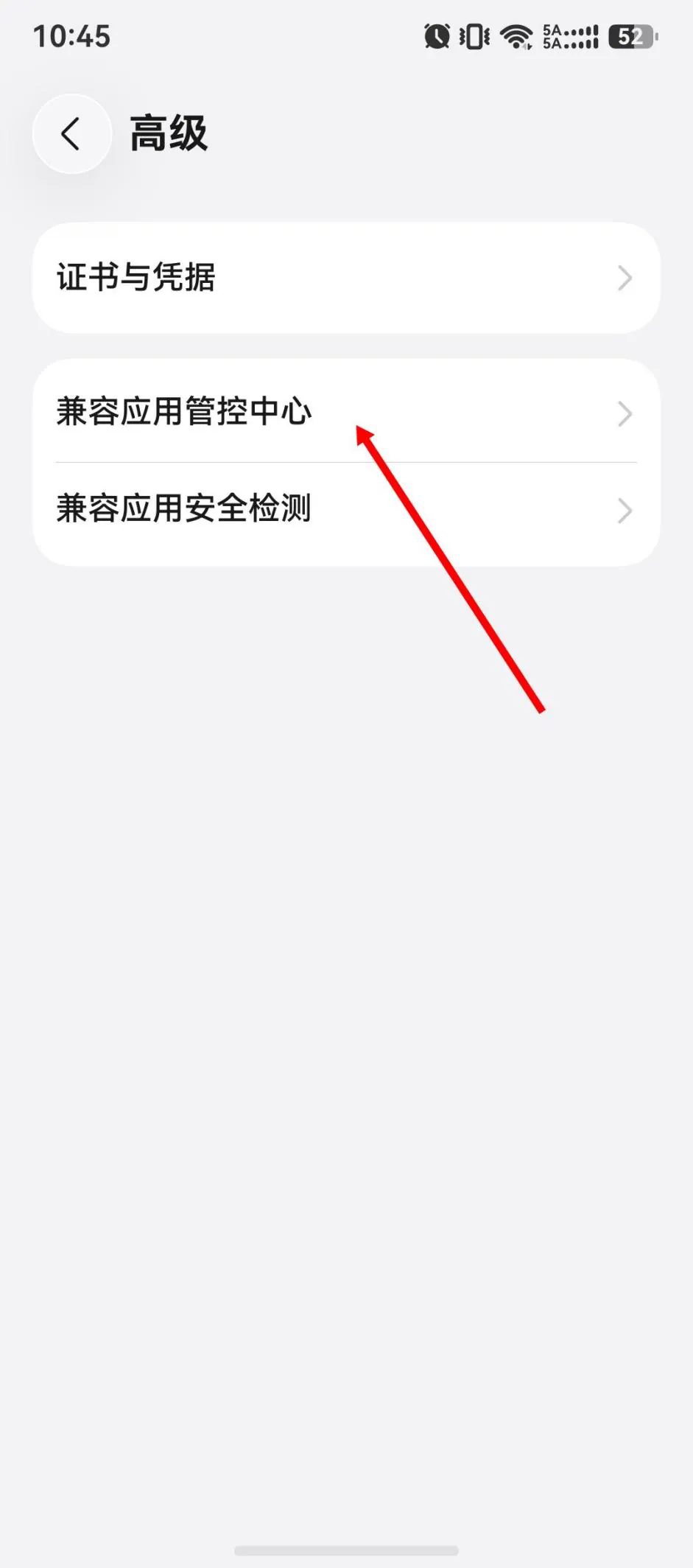
2. 点击“兼容应用管控中心”。
3. 点击“定位修改精灵”。
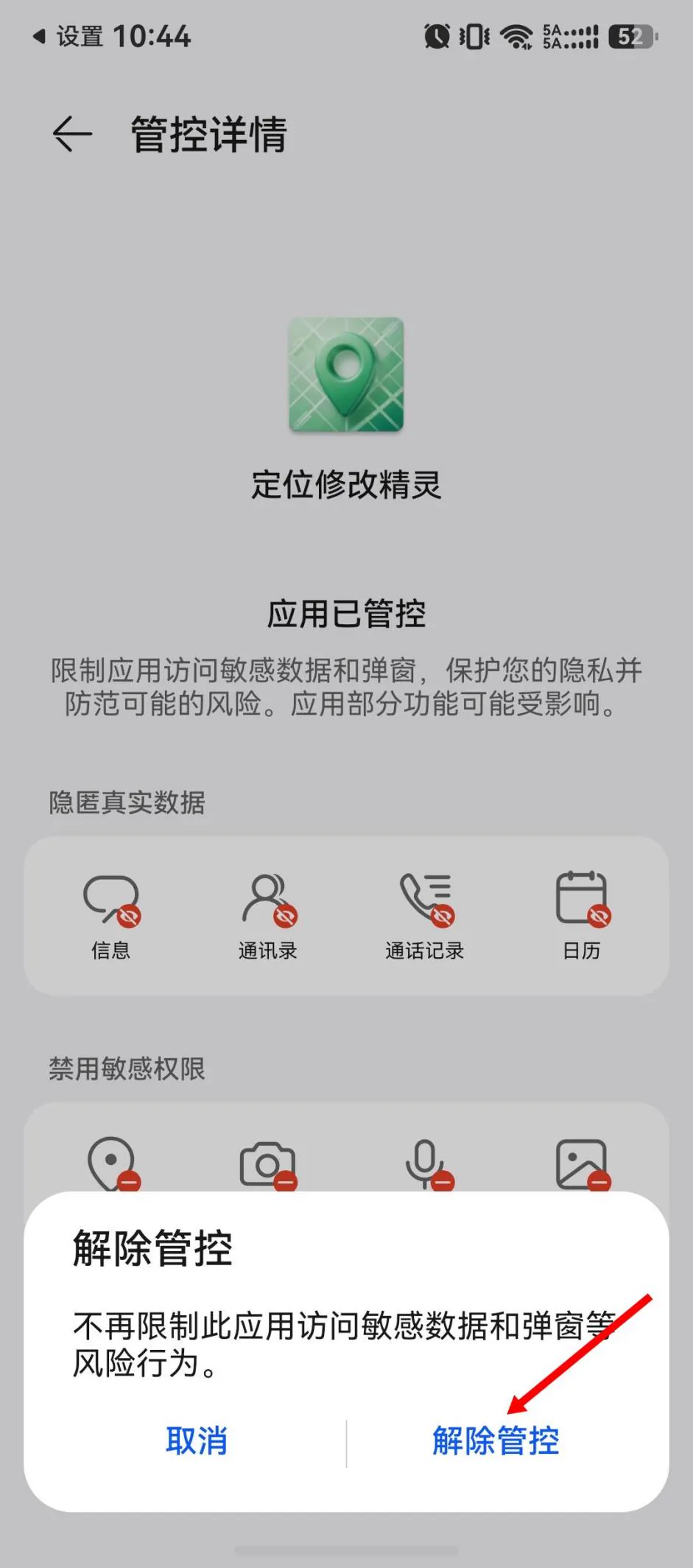
4. 点击“解除管控”。
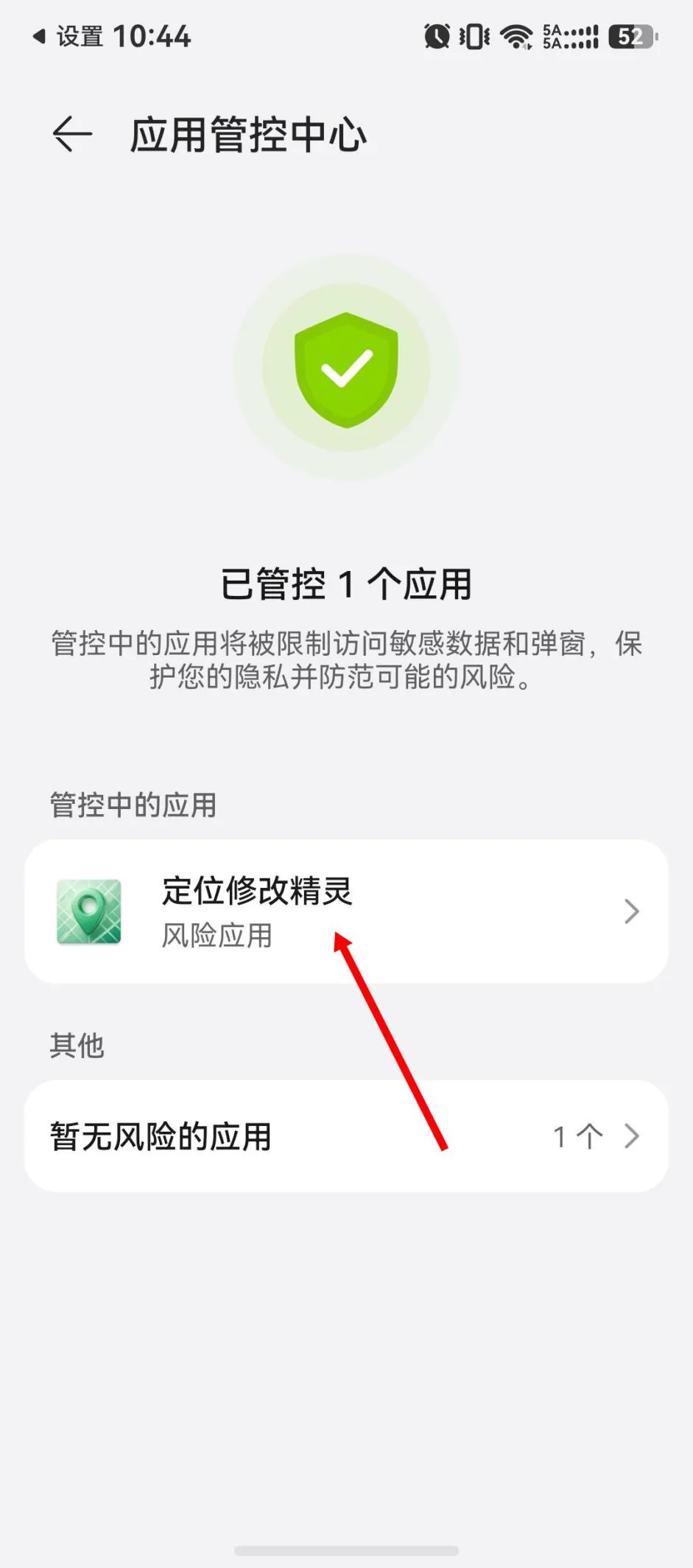

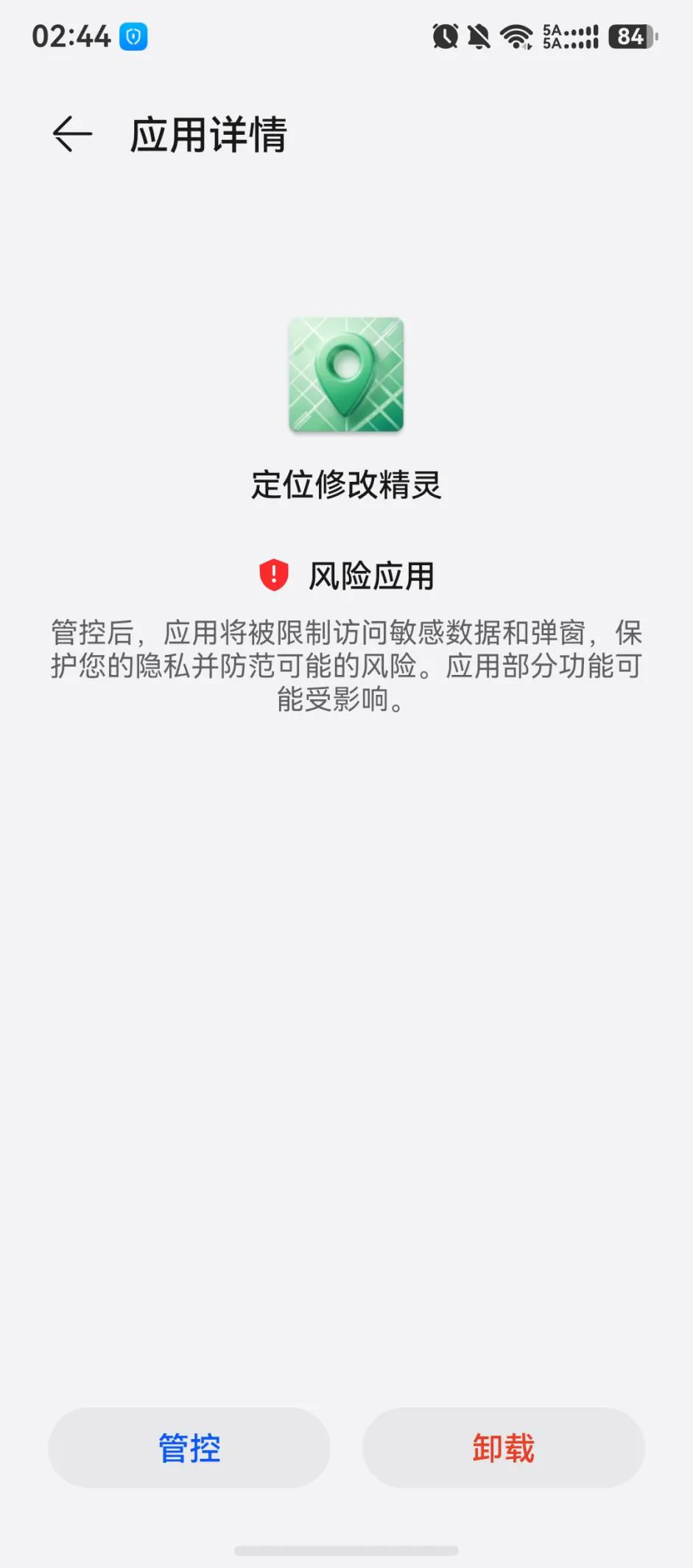
5. 看到解除成功的提示后直接退出,不要再次点击“管控”。
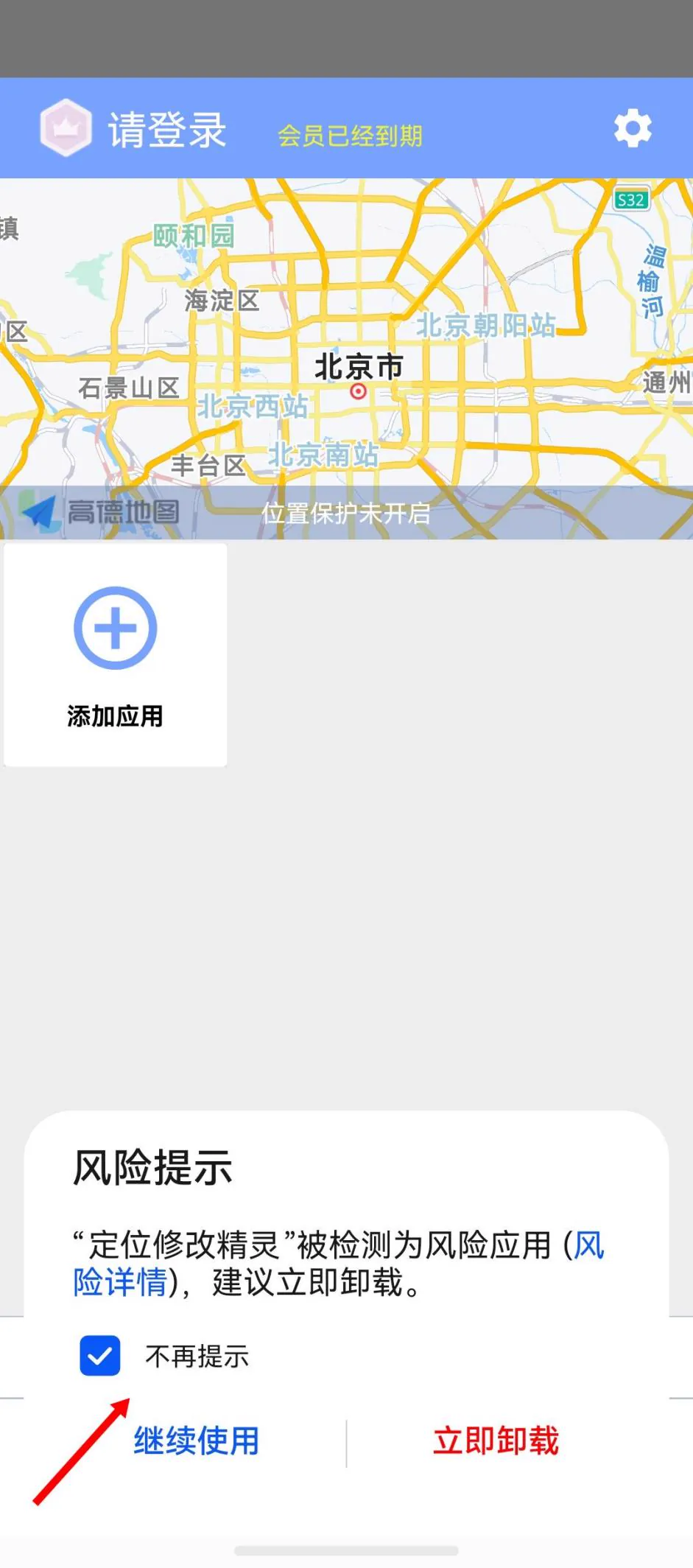
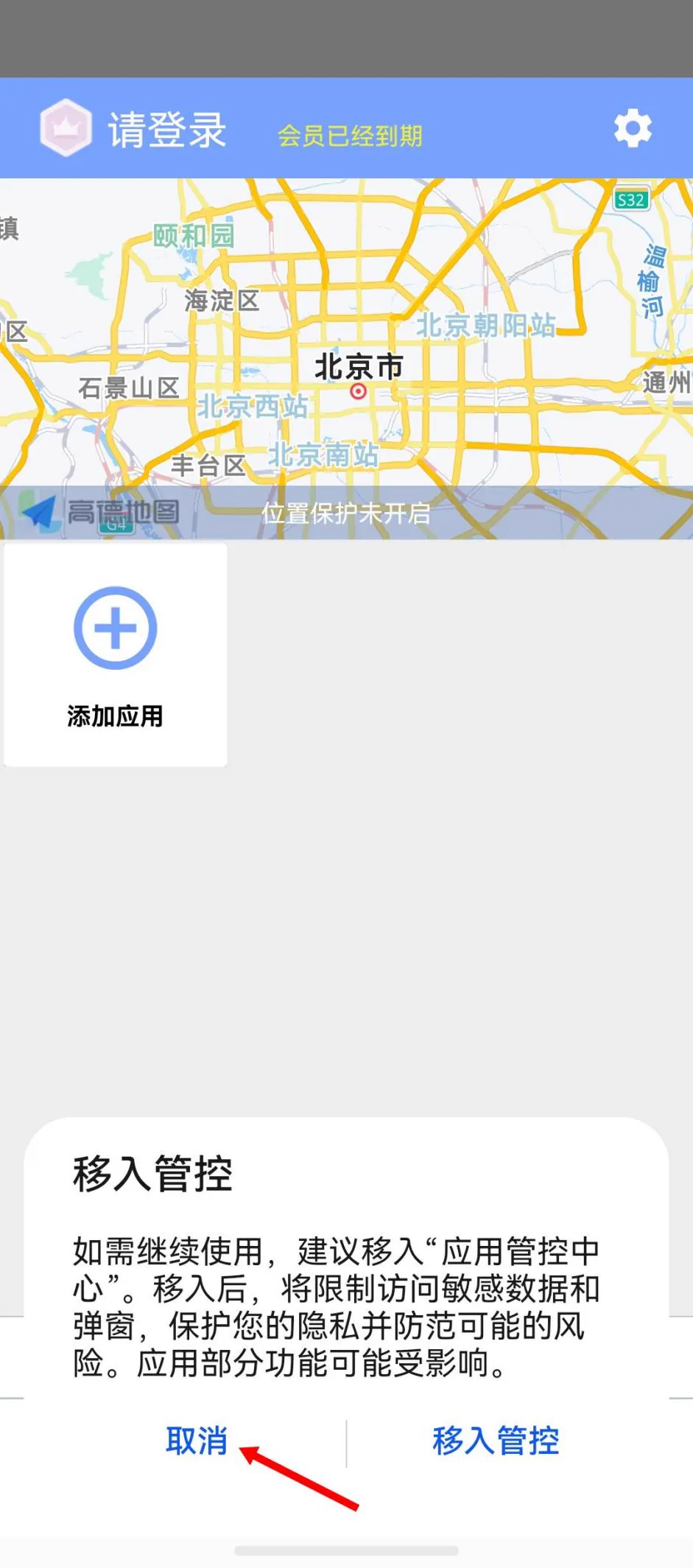
6. 重新打开定位修改精灵,勾选“不再提示”,再点击“继续使用”。
7. 在弹出的提示中点击“取消”,管控就彻底解除了。
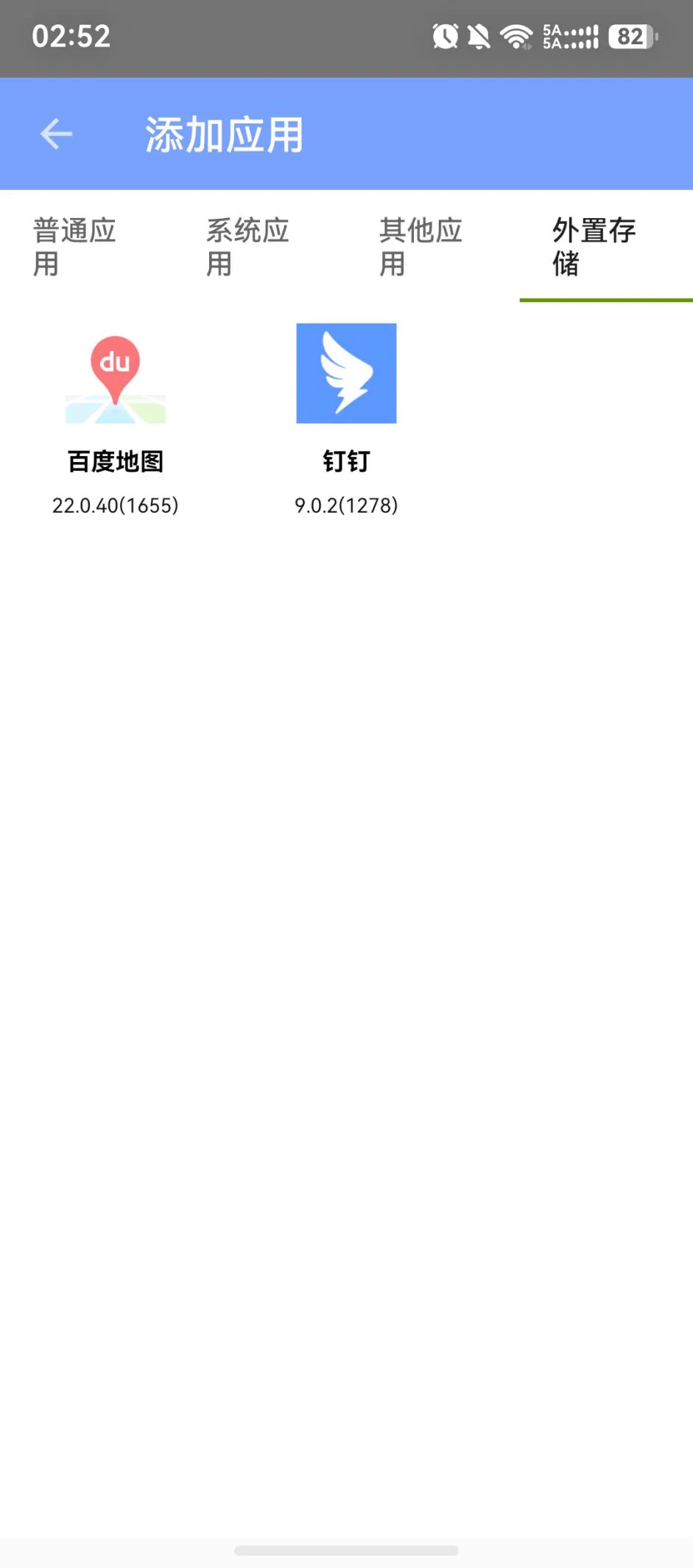
8. 回到定位修改精灵,添加应用里会多出一个“外置存储”菜单,里面就有卓易通下载的应用了。
## 三、鸿蒙手机定位应用添加流程
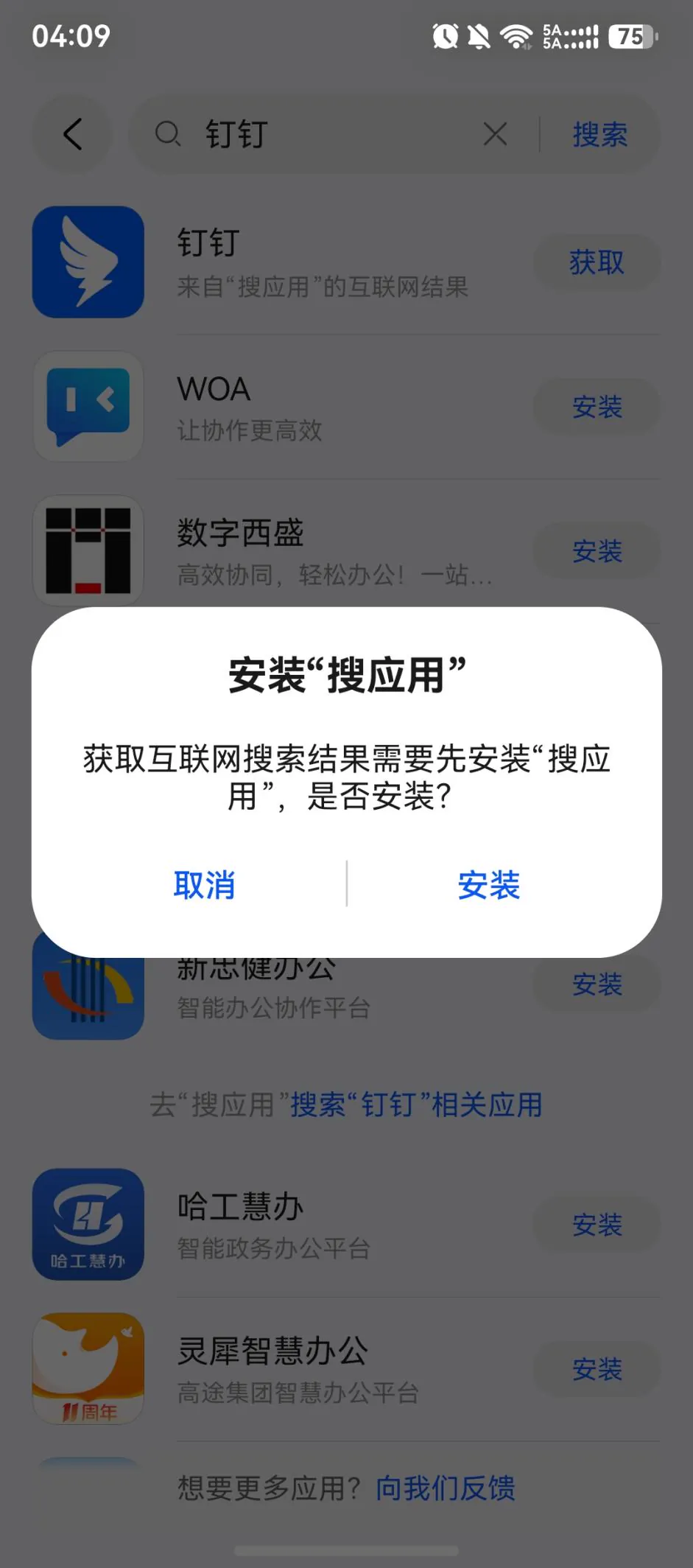
1. 所有鸿蒙系统手机都需要先在卓易通内下载相应的软件,才能在定位修改精灵中添加此应用。打开手机中的卓易通,搜索需要定位的应用,第一次使用需要先安装“搜应用”。
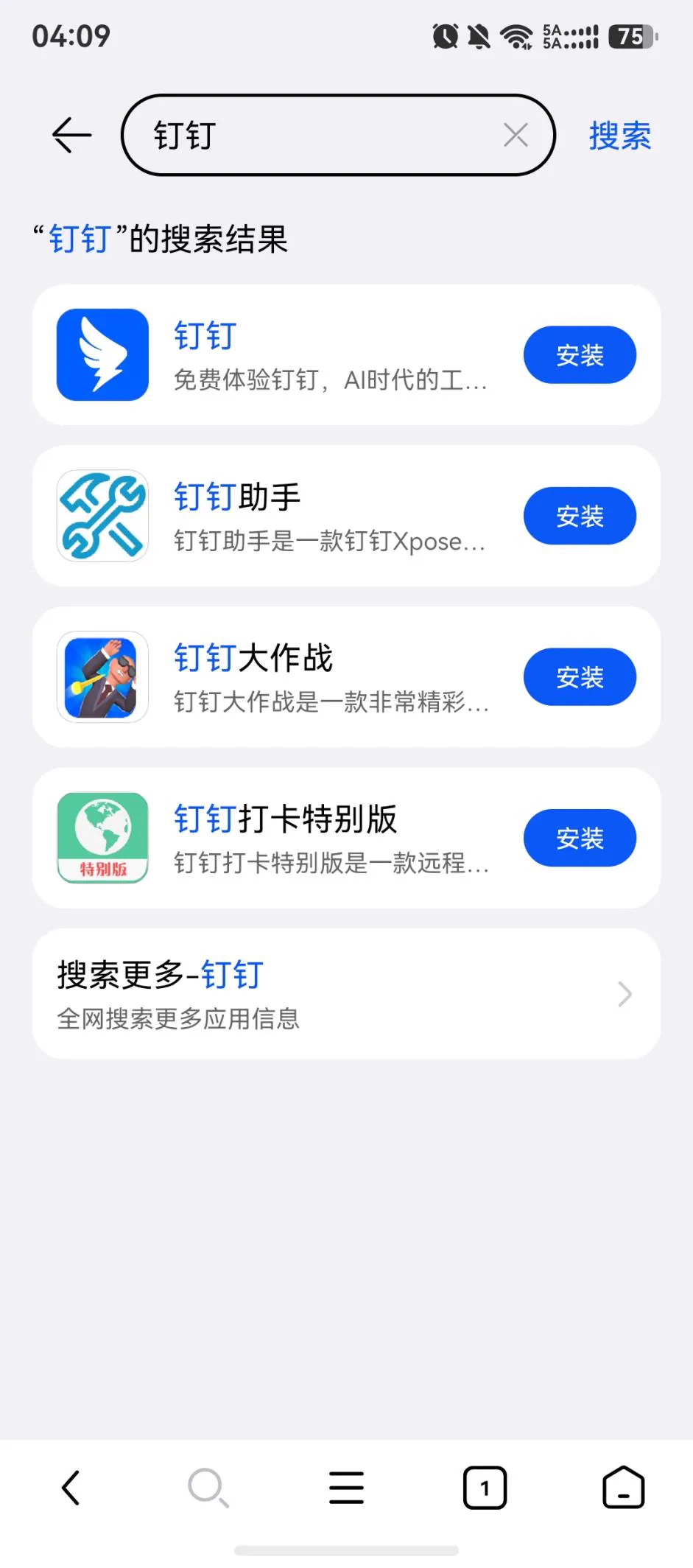
2. 搜索需要定位的应用,搜应用会跳转到该应用的官方网站,然后点击下载相应客户端的 APK 包。

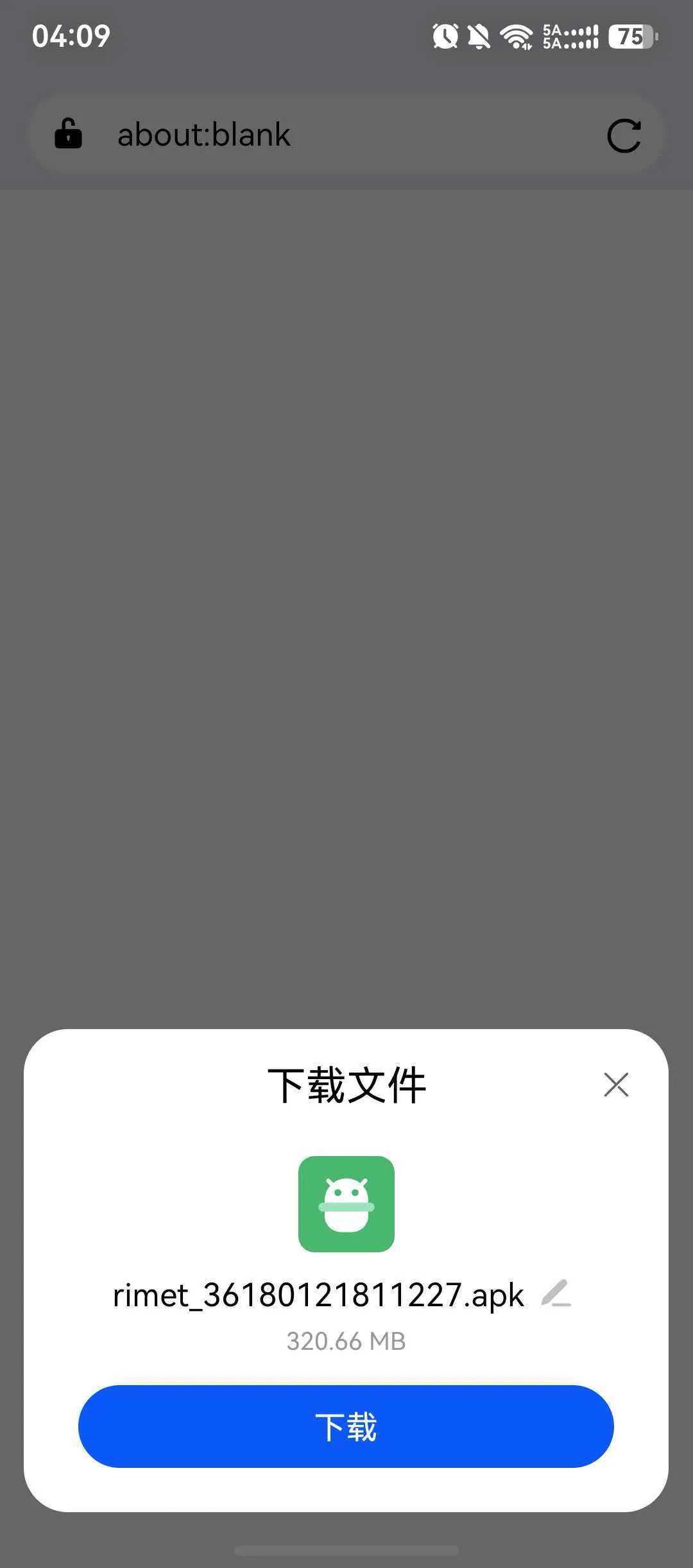
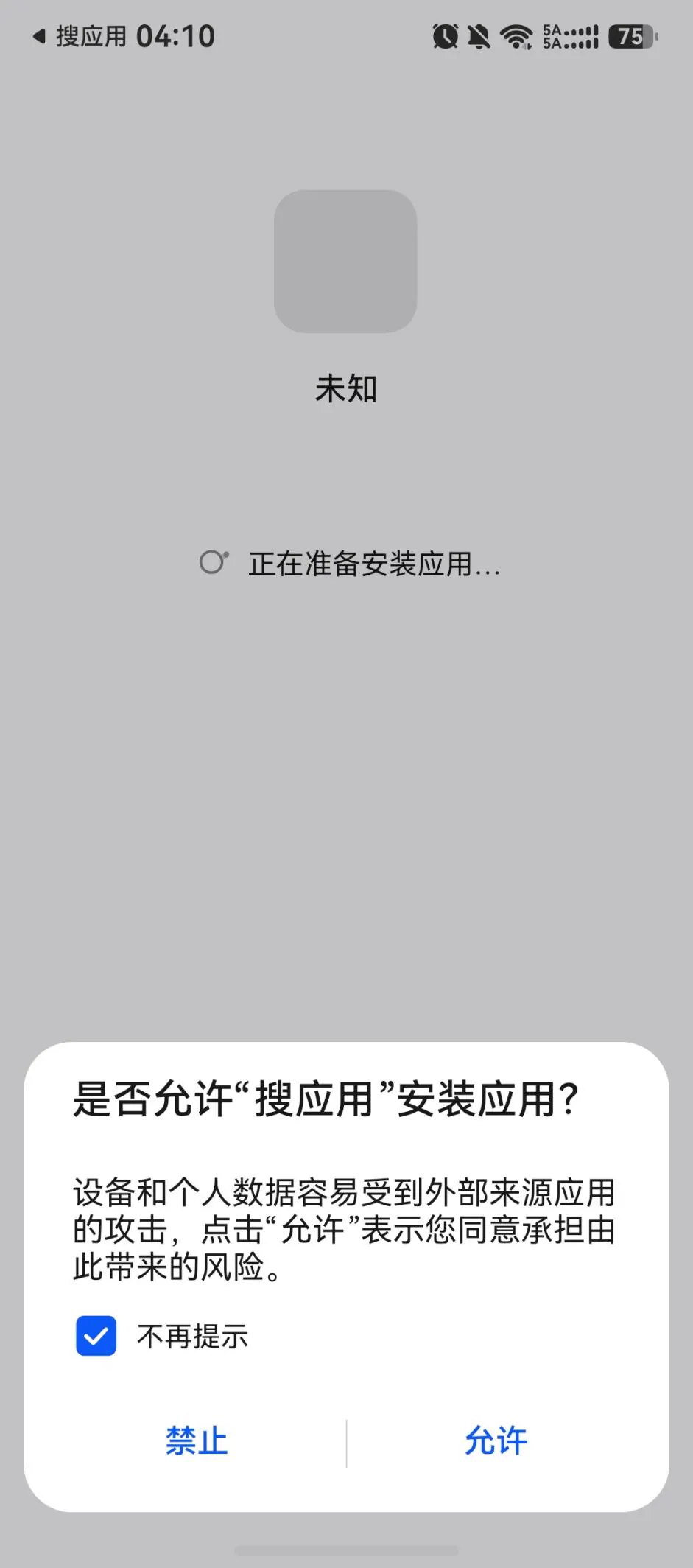
3. 下载完成后允许安装。
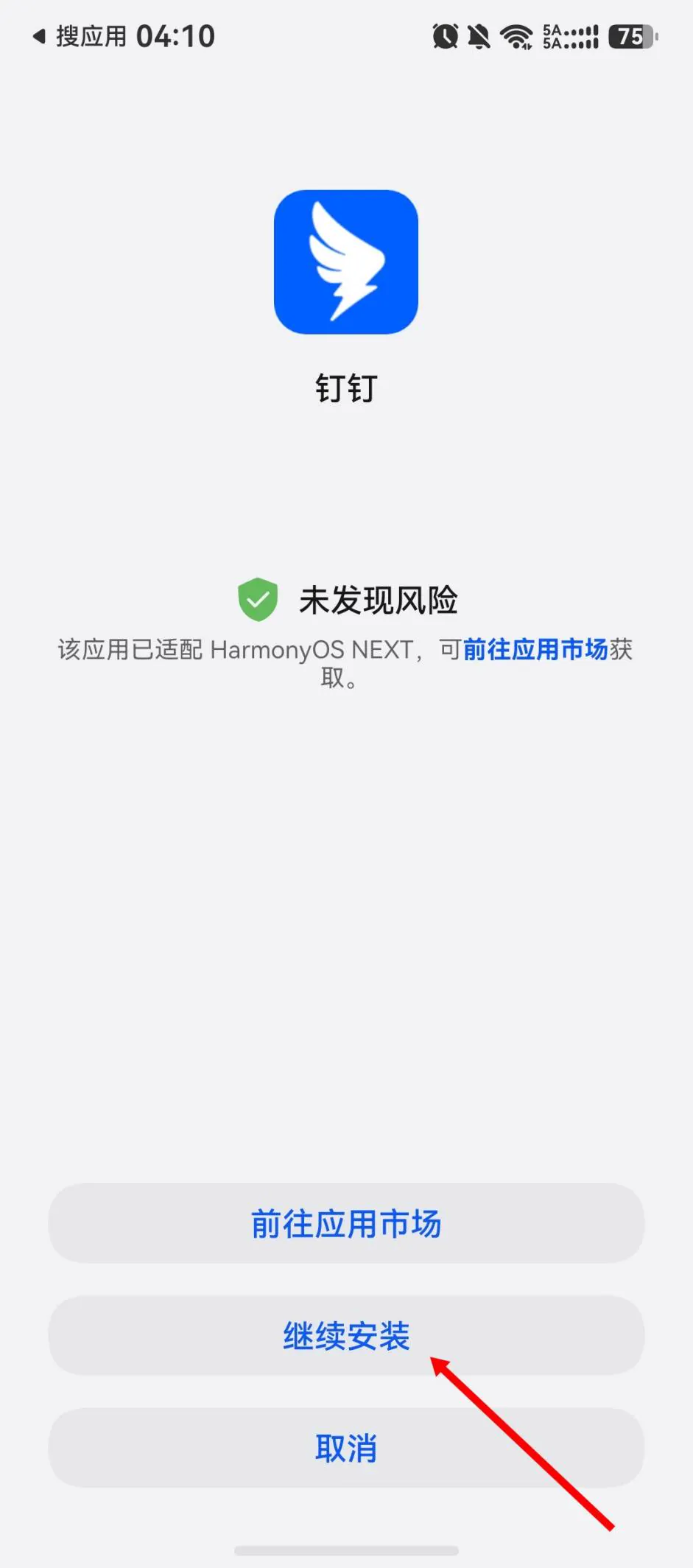
4. 点击“继续安装”,不要前往应用市场安装。安装完成后就可以在定位修改精灵里添加了。
5. 卓易通内搜索不到的应用,需要到浏览器搜索并下载相应的 APK 包。
## Sitemap
See the full [sitemap](/sitemap.md) for all pages.